For guests · 2 min
Approve photos before they are published
Turn on upload approval to review each photo before your guests see it, then publish or reject it from the To review queue.
Updated October 7, 2026
Turn on approval
In Settings, Privacy section, turn on Approve uploads, then click Save. Available on all plans.
Open the To review queue
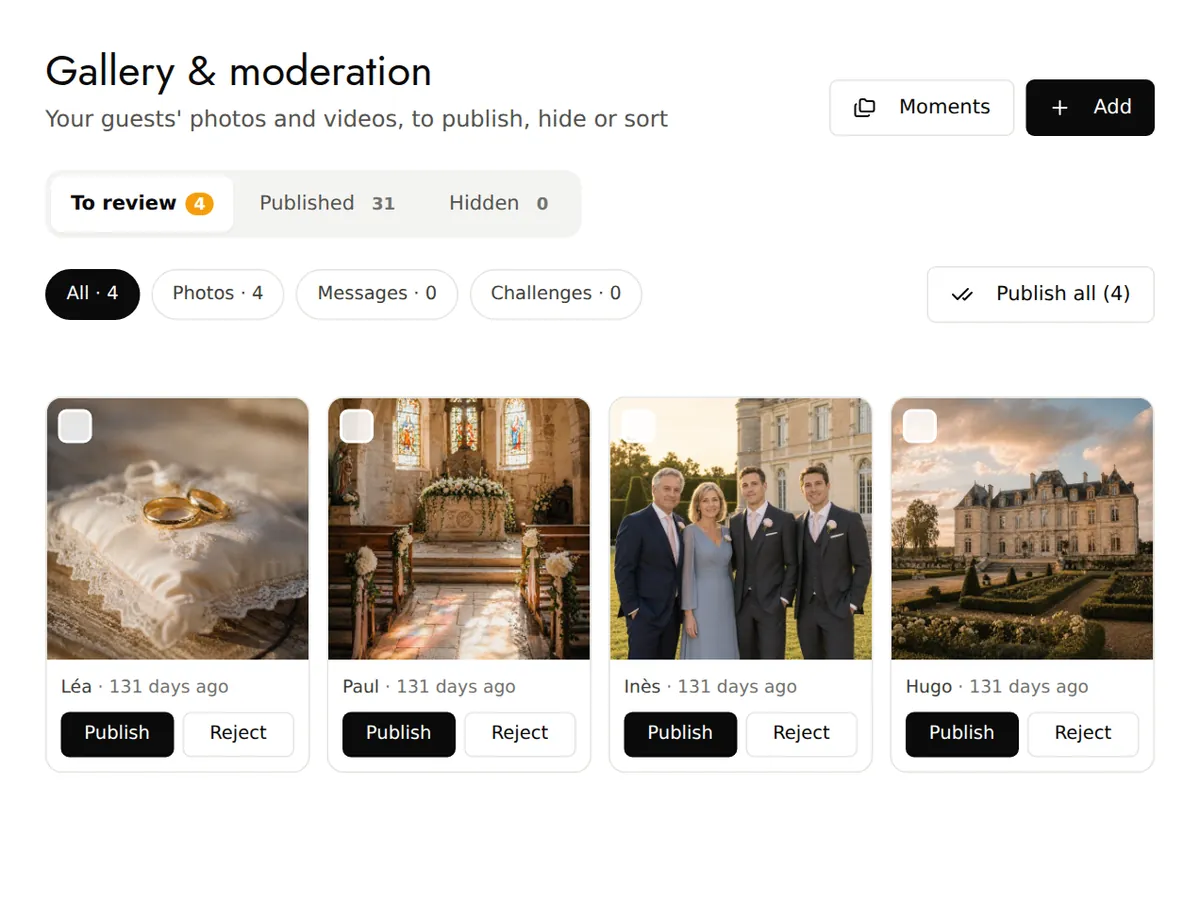
In the menu, Gallery & moderation shows the number of uploads waiting. The To review tab gathers photos, challenge photos and guest book messages; the Photos, Messages and Challenges filters separate them.
Publish or reject
For each upload: Publish or Reject. Select several to decide in one go, or use Publish all.
Good to know
- A rejected photo moves to the Hidden tab: you can publish it later. A rejected message is permanently deleted.
- Even without approval, you can remove a published photo at any time: in Gallery & moderation, choose Hide on that photo.
- Your guests are told before they send that their photos will appear once you have approved them.