Getting started · 3 min
Set up your gallery before the big day
Public or private gallery, guest uploads, photo approval, language and display order: the settings to check before your event.
Updated October 7, 2026
Open the settings
In your event menu, open Settings. Your changes only apply after you click Save, in the bar that appears at the bottom of the page.
Choose who sees the photos
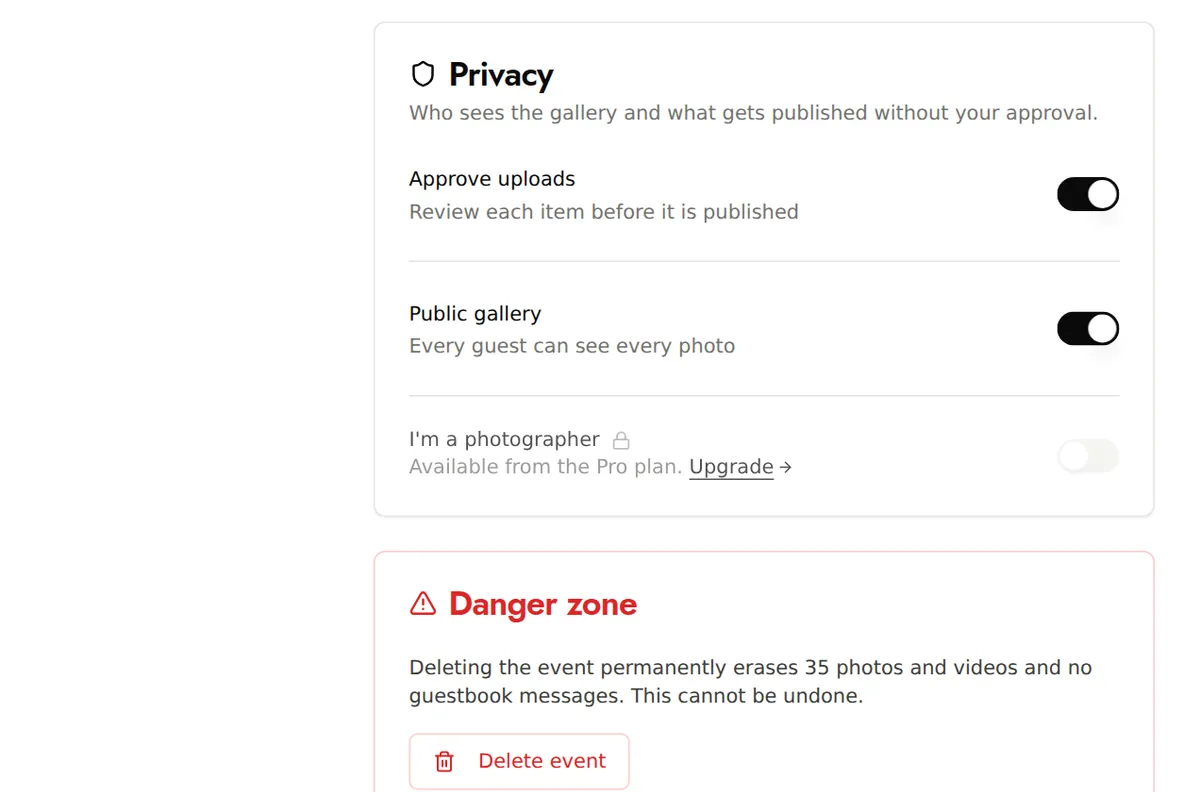
In Privacy:
- Public gallery: every guest sees every photo. When it is off, the gallery is for you only: your guests can still send their photos and, with selfie search, find their own.
- Approve uploads: you approve each photo before it appears. See approve photos before they are published.
Decide what your guests can do
In Features:
- Guest uploads: your guests add their photos and videos (all plans).
- Facial recognition, Guest book, Photo challenges and Allow downloads: from the Event plan.
Set up the display
In Gallery: the gallery language (French or English; your guests can switch to the other language), the gallery sort order (newest or oldest first) and the gallery layout (editorial collage or grid).
Good to know
- Moments organise the gallery like the running order of your day (ceremony, drinks reception, evening party…): open Gallery & moderation, then Moments. Your guests choose the moment when they send their photos. Included in all plans.
- Features marked with a padlock show Available from the Event plan.